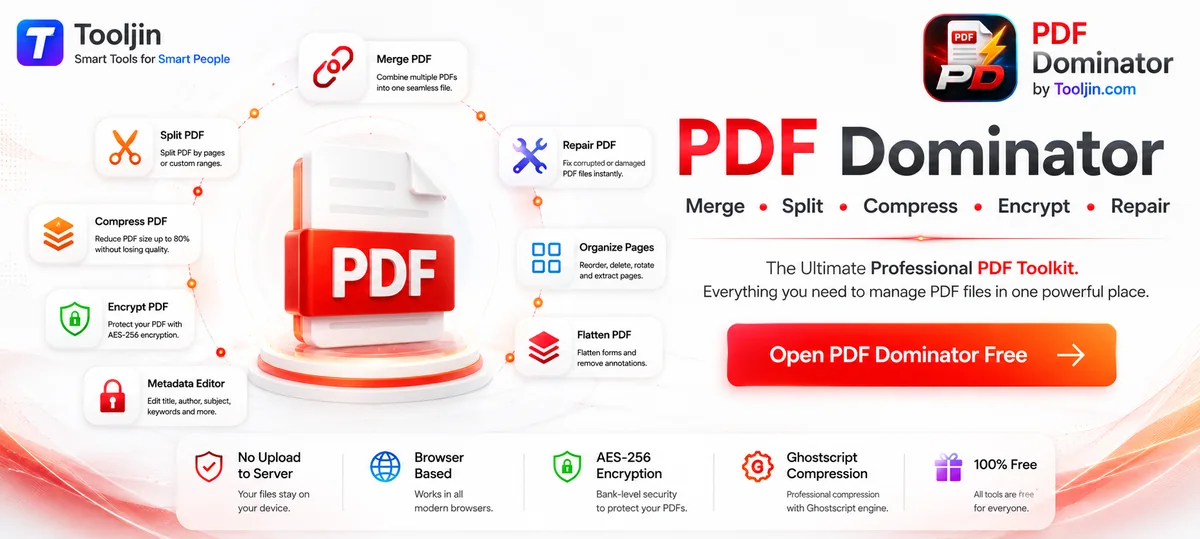
Merge multiple PDFs into one, split by page range, compress up to 80%, encrypt with AES-256, repair corrupted files, organise pages and edit metadata. All free, no upload to server — everything runs in your browser.
Merge, Split, Compress, Encrypt, Decrypt, Repair, Flatten and edit Metadata — the most complete free PDF toolkit online.
Combine multiple PDF documents into one single file. Drag and drop to arrange files in the perfect order before merging.
Extract specific pages or divide a large PDF into smaller files — by custom page range or by equal page count chunks.
See all pages as thumbnails, drag to reorder, rotate individual pages, delete unwanted ones, or extract selected pages as a new PDF.
Reduce PDF file size by up to 80% using professional Ghostscript compression. 3 quality levels to balance size and quality.
Add AES-256 password protection to your PDF or remove existing passwords. Set separate user and owner passwords.
Fix corrupted or broken PDF files. Recover documents with damaged cross-reference tables, truncated files, or structural errors.
Permanently embed form fields and annotations into the PDF. Edit title, author, subject and keywords for SEO and document management.
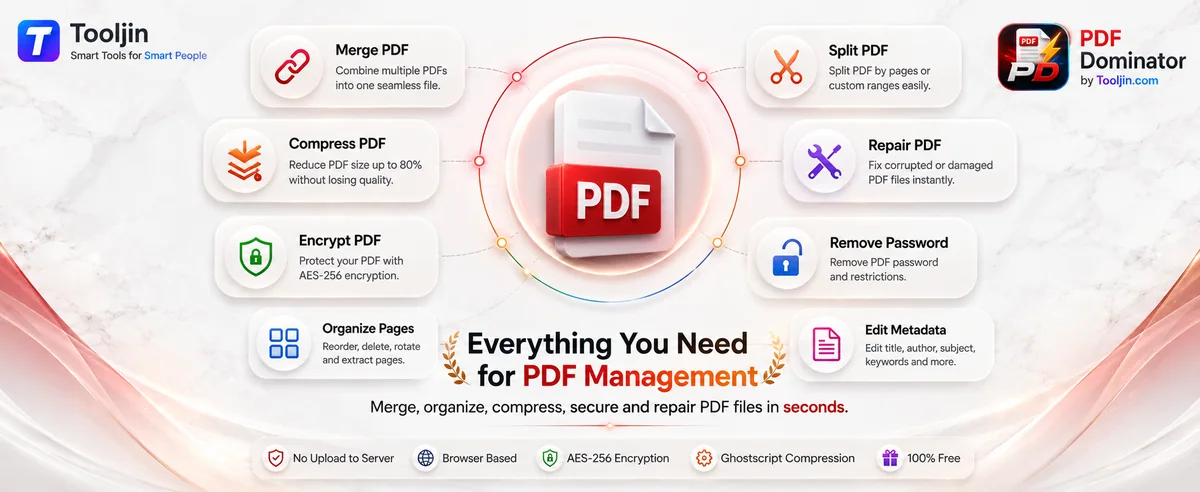
Everything you need for PDF management, in one free tool.
Merge, split, compress and secure your PDFs — watch how fast it is.


Private by design, powerful under the hood, and completely free.
Every operation runs 100% in your browser. Your PDFs are never uploaded to any server — complete privacy, total security.
Powered by Ghostscript for real compression (up to 80% smaller) and reliable repair of corrupted PDFs — not a lightweight approximation.
Add industry-standard password protection with separate user and owner passwords, or remove passwords from PDFs you own.
Every tool is free with no watermark and no account required. Just open PDF Dominator and start working.
No installation, no plugins. PDF Dominator runs in all modern browsers on desktop and mobile.
Merge, split, compress, encrypt, decrypt, repair, flatten and edit metadata — no need to jump between different sites.
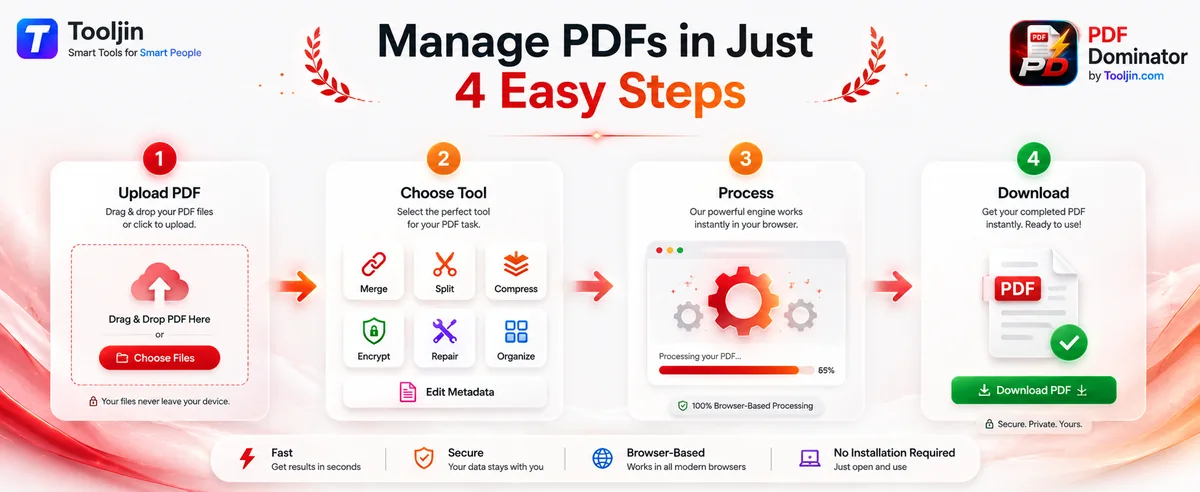
Four steps, under a minute — works the same for every tool.
Drag & drop your PDF files or click to upload. Your files never leave your device — everything is processed locally.
Pick the tool you need — merge, split, compress, encrypt, repair, organise or edit metadata.
The engine works instantly in your browser. Watch the progress and preview the result.
Open PDF Dominator and go to the Merge tab. Upload your PDF files by clicking or drag & dropping them. Drag the files to arrange them in the order you want. Click Merge — your combined PDF downloads instantly. No signup, no upload to server.
Go to the Split tab in PDF Dominator, upload your PDF, and enter page ranges like '1-3, 5, 7-10'. Click Split — each range downloads as a separate PDF file. You can also split into equal chunks by specifying pages per chunk.
Yes. Go to the Organize tab, upload your PDF, and you'll see thumbnail previews of all pages. Click pages to select them, then rotate or delete them. Drag thumbnails to reorder pages. Download the reorganized PDF when done.
Yes. In the Organize tab, click to select the pages you want to extract, then click Extract. The selected pages are saved as a new PDF file — useful for pulling out specific sections from large documents.
Yes. PDF Dominator lets you add page numbers in 6 formats — Bottom Center 'Page 1 of 5', '1/5', '- 1 -', Bottom Right 'Page 1', Top Right 'Page 1', or just '1'. Choose your preferred style before merging.
No. PDF Dominator works entirely in your browser using PDF-lib.js. Your files are never uploaded to any server — all merging, splitting, and organizing happens locally on your device for complete privacy.
Yes, completely free. Tooljin's free plan includes 200 credits per month plus 5 credits per day. No credit card required. Compress, Encrypt, Repair, and Decrypt require a free account.
Go to the Compress tab in PDF Dominator, upload your PDF (max 100MB), choose a quality level — Maximum Compression (72 dpi), Recommended (150 dpi), or High Quality (300 dpi) — and click Compress PDF. Powered by Ghostscript, files are typically reduced by 25–70%.
Go to the Encrypt tab in PDF Dominator. Upload your PDF, enter a user password (required to open) and optionally an owner password (for editing restrictions). Click Encrypt PDF — your file is protected with AES-256 encryption, the industry standard.
Go to the Encrypt tab and click Remove Password. Upload your encrypted PDF and enter the current password. Click Remove Password — the unlocked PDF downloads immediately. The password is permanently removed.
Yes. Go to the Repair tab, upload your corrupted PDF, and click Repair PDF. PDF Dominator uses Ghostscript with recovery flags to fix corrupted cross-reference tables, truncated files, and common PDF structure errors.
The complete PDF toolkit — merge, split, compress, encrypt, repair and more. No signup, no upload to server, 100% private.
Open PDF Dominator